You can save the current Tabulation you are working on whenever you choose.
Accessing Save
In the Status Bar at the top-right of the Tabulate canvas, click Save (purple arrow below). If an item has been previously saved (that is, it already exists in the content system), clicking Save will simply commit the current changes to the database repository. If it's a first time save, or if you right-click and choose Save As from the context menu, then the Save Dialog opens. The dialog gives you an opportunity to choose where to save the item and, if relevant, set its role access.
Tabulate Pro

Tabulate Lite

Save Dialog
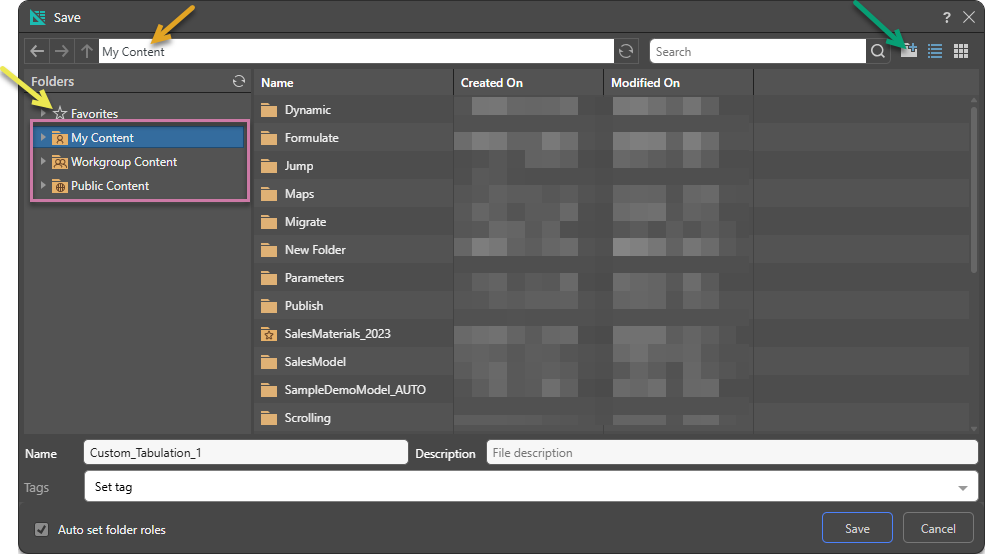
The Save dialog appears as follows:
Folders
The Folders panel contains a Favorites shortcut (yellow arrow) and the folder tree (purple highlight). Navigate through the tree and select the folder that you want to save your item to.
Favorites
Use the Favorites option to access those folders that you have flagged as "Favorites." The Favorites option is not a folder; it is a shortcut that allows you to go to your most used or preferred folders without having to navigate the tree. When you access a Favorite folder in the Save dialog, you are saving the file to the location in the tree that you flagged as a favorite.
- Click here for more information about Favorites in the Content Manager
Folder Tree
You can choose where to save your content to in the folder structure. You are presented with those folders that you have WRITE access to. Once inside the folder tree, you can also access the folder navigation bar (orange arrow above) to more easily move around and add new folders to the tree on the spot (green arrow above).
- My Content: The content in this domain is private. You should save to this folder when you don't want to share your content with others yet. Note that Admins will be able to see this content.
- Workgroup Content: Group content is made READ and WRITE accessible to other users who share your security roles. Note that full write permissions are granted to users with access to the Workgroup folder.
- Public Content: Public content is made accessible to all user roles DEPENDING on the role security of the folder or item.
- Click here for more details about the folder structures
Metadata and Tags
Before a content item is saved it MUST be given a name. Optionally it can be given a description as well - which will help you and others understand what the item is and details about it in the future. This is central to building out a data catalog of data and analytic assets inside Pyramid. The ability to tag all content items (blue arrow above) also helps when trying to search and categorize content.
Role Security for Public content
When saving content into the public folder domain, the new content inherits the security of the parent folder by default. You can clear the Auto select folder roles checkbox to manually assign roles to the item.
- Click here to learn about assigning roles to items during save.
Overwrite Warning
When you click Save, if you see a message about an existing file, you may be in danger of overwriting a file that's already in that location. In this case, you can use the options to Replace the original, create another version of the file (OK), or Cancel to choose a different name or location.
Closing Unsaved Items
You can close items at any time without saving them to the content system. When you close the unsaved item, you are prompted with a warning dialog:
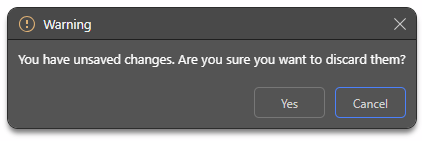
- Click Yes to close the app and discard any unsaved changes.
- Click Cancel to continue working.
Related information
Versioning
Users can save multiple versions of any item and then retrieve and edit those versions, independently of the current version of the item. This provides users with an effective and simple way of tracking content changes, getting access to previous iterations of specific content items without having to restore the entire repository database as a whole, and continuing the development of content without the risk of losing or deleting the originals.
- Click here for details on how to save and manage different versions.